TABLE OF CONTENTS
- Creating users manually
- Importing users from a CSV file
- Managing permissions
- Understanding user roles
- Blocking and deleting users
Creating users manually
Access and navigation
To create users manually in FP Sign, open the admin interface using the following link:
⇒ Go to the FP Sign admin interface
Sign in with your personal FP Sign credentials.
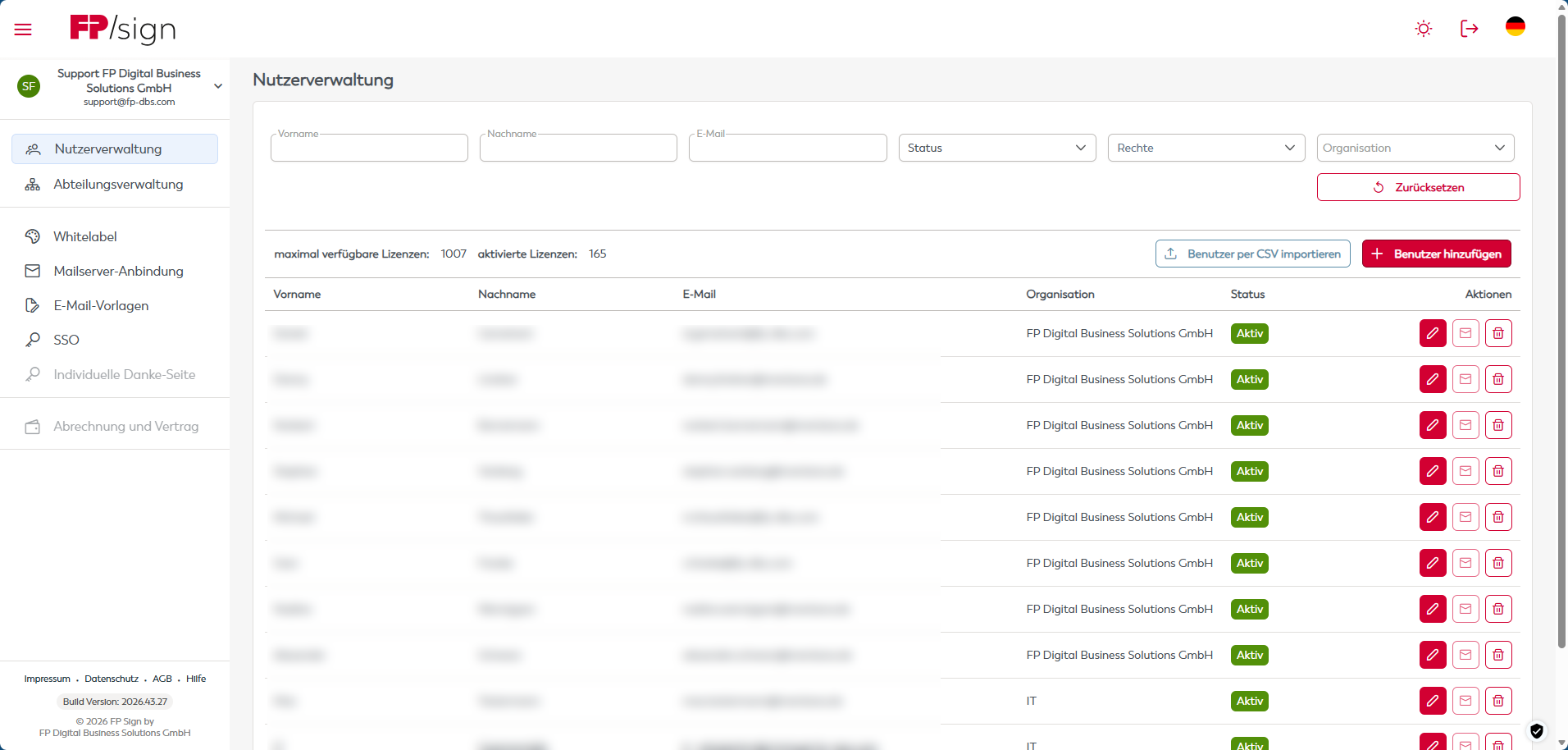
Open the User overview from the menu. It shows the total number of licences available and how many are already in use.
Select Add user to create a user. Complete all the fields provided.
Roles and permissions
Next, select the roles you want to assign to the user. For a description of the available roles and their permissions, see 'Understanding user roles'.
Finally, click Create to create the user account.
Do you see an error message such as "User already exists in another tenant" when creating the account? This means the user has already registered and uses FP Sign. To move the user to your FP Sign tenant, contact our support team:
Importing users from a CSV file
Access and CSV file requirements
To create users in FP Sign from a CSV file, open the admin interface:
⇒ Go to the FP Sign admin interface
Sign in with your FP Sign credentials.
From the menu, select Import users from CSV.
The CSV file you import must meet the following requirements:
- It must not contain a header row.
- The data must follow this exact format:
Email address;First name;Last name;Mobile number - The file must be encoded in UTF-8.
Example table:

Saving the file in UTF-8 format:

Licences and role assignment after import
This section also shows the total number of licences available and how many are already in use.
Select Add user to create a user. Complete the fields provided, then select the roles you want to assign to the user. For a description of the available roles and their permissions, see 'Understanding user roles'.
First, find the user and click the pencil icon: 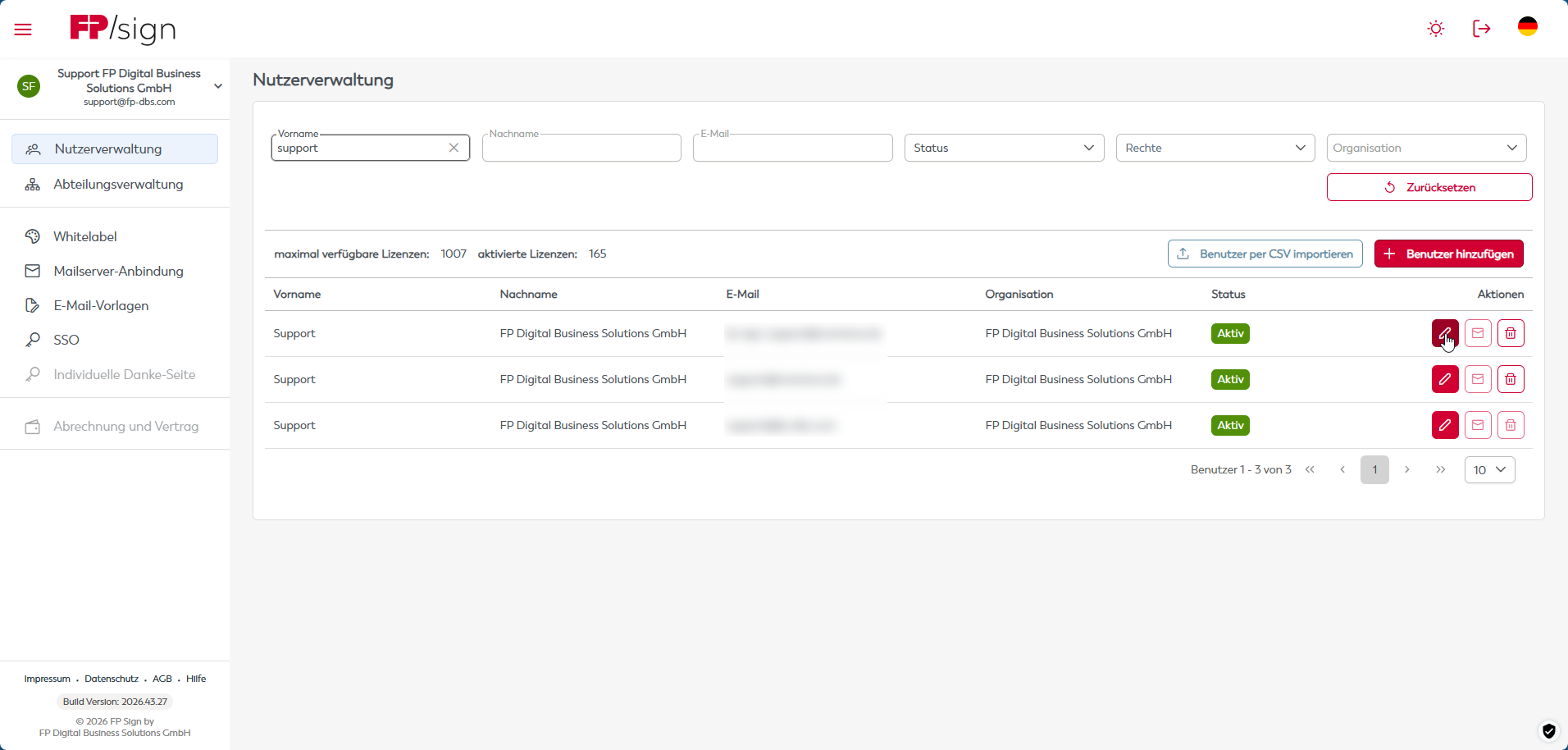
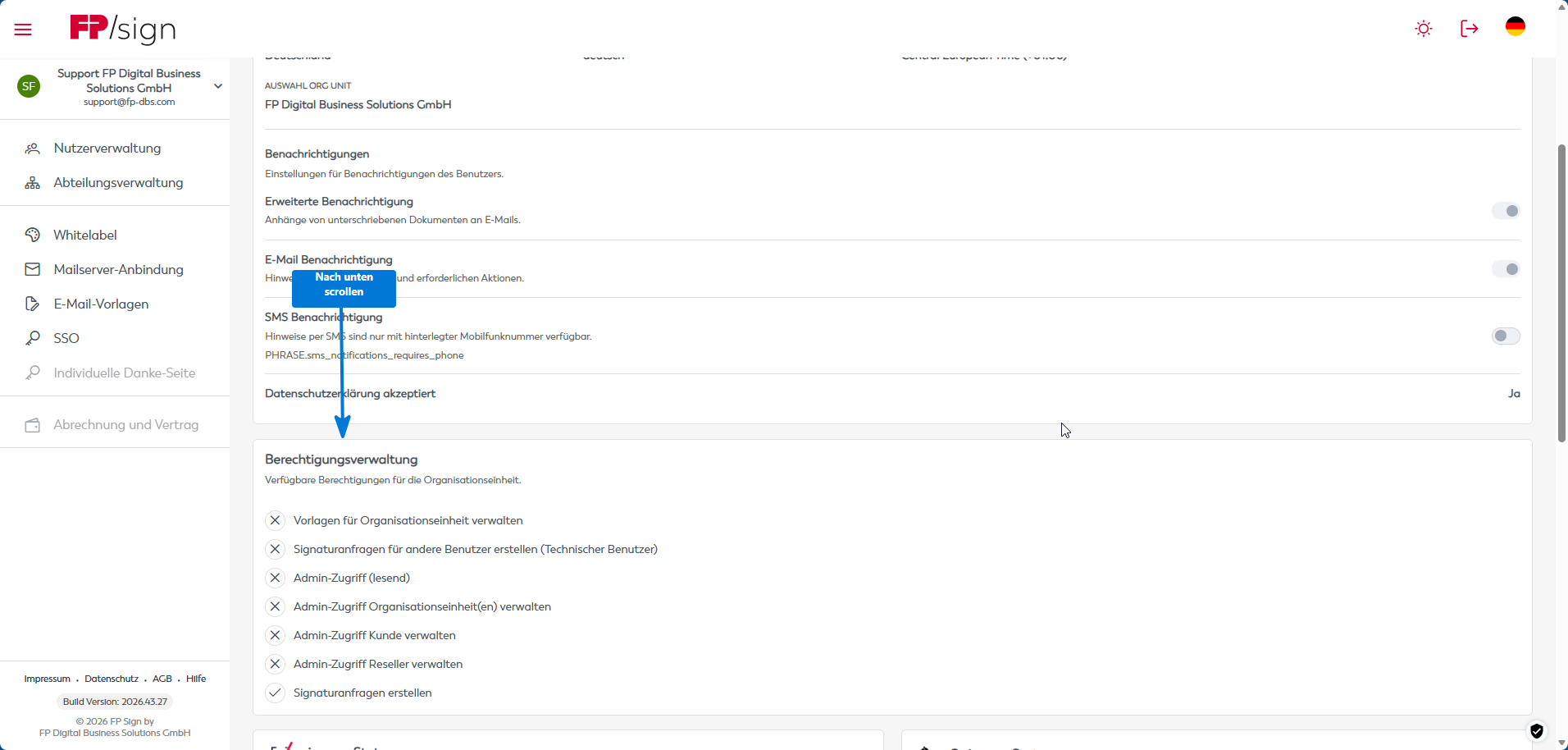
Scroll down and click the roles you want to assign. The system saves your changes automatically.
Finally, click Create to complete the import or finish creating the user account.
Do you see an error message such as "User already exists in another tenant"? This means the user has already registered and uses FP Sign. Contact our support team so they can move the affected users to your FP Sign tenant:
Managing permissions
Actions available in the user overview
To manage user permissions in FP Sign, open the admin interface:
⇒ Go to the FP Sign admin interface
Sign in with your FP Sign credentials.
Open the User overview from the menu.
In the user overview, you can:
- Manage permissions
- Block users
- Resend registration emails
- Check how many workflows have been processed
Understanding user roles
Admin
You need the Admin role to:
- Access the admin interface
- View the total number of workflows
- Create, manage or block users
- Edit email text
- Change general company settings
- Manage contract details (This is only possible if you entered into the contract by placing an order with us online.)
The following restrictions and notes apply:
- An admin without the Workflow Creator role cannot create signature requests.
- This role does not use a licence.
Workflow Creator
You need the Workflow Creator role to create and send signature requests. You also need this role to use the signature services (only when signing on your own behalf).
Important: The Workflow Creator role does use a licence.
You do not need the Workflow Creator role to sign documents.
Users without the Workflow Creator role can only sign in and respond to requests they receive from others. When a user without the Workflow Creator role countersigns a document, no licence is used.
Technical User
The Technical User role is required only for the following purpose:
- Connecting interfaces and integrations to FP Sign (for example, for the FP Sign DATEV Connector Agent Service)
The following restrictions and notes apply:
- Only customers with the Business Online Subscription contract status can create a technical user!
- A technical user cannot receive or create signature requests.
- The Technical User and Workflow Creator roles are mutually exclusive and cannot be assigned to the same user at the same time.
- A technical user is only needed when setting up an interface.
- This role does not use a licence.
Important: If you accidentally assign the Technical User role to a user instead of the Workflow Creator role when creating the account, contact support. You cannot remove the role yourself.
Blocking and deleting users
Follow these steps when a user account needs to be deleted, for example if the user has left the company.
First, an administrator must block the user in the user overview.
Then contact our support team:
Our support team will check whether the user has any open or completed workflows. If necessary, they will contact you again before permanently deleting the account.
Was this article helpful?
That’s Great!
Thank you for your feedback
Sorry! We couldn't be helpful
Thank you for your feedback
Feedback sent
We appreciate your effort and will try to fix the article